
Install the Paidin app and enable notifications
Paidin is now available as an app you can install directly on your phone or tablet. The app opens just like any other app, loads faster than the browser and can send push notifications when something happens with your invoices or salary.
What you get
- Faster access straight from the home screen without opening the browser
- Push notifications when your invoice status changes, when your salary is paid out, and when you receive messages from Paidin
- Same account as when you log in on paidin.se, no separate registration needed
Step 1: Install the app
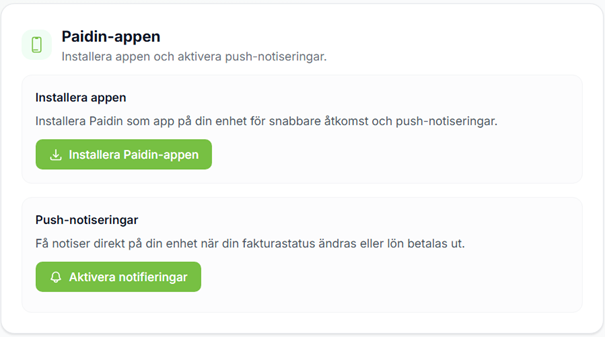
Log in on paidin.se in your phone's browser and go to Settings. Under The Paidin app, tap Install the Paidin app.
On iPhone/iPad (Safari): tap the share icon at the bottom of the screen and choose Add to Home Screen.
On Android (Chrome): confirm the Install app dialog that appears.
After installation you will find Paidin among your apps just like any other app.
Important: one install per device
The app is installed on the device where you are logged in right now. Want the app on both your phone and tablet? Log in on each device and run the install once on each.
Step 2: Enable push notifications
Once the app is installed, tap Enable notifications in the same settings view. Your device asks whether to allow notifications. Say yes.
Step 3: Choose which notifications you want
Under Notifications in the same settings view you choose which push notifications to receive.
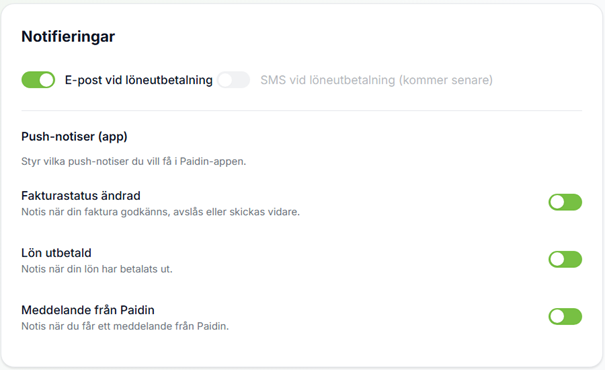
- Invoice status changed: notification when your invoice is approved, rejected or forwarded.
- Salary paid out: notification when your salary has been paid.
- Message from Paidin: notification when you receive a message from us.
Each type can be turned on or off individually. You can change your choices at any time.
Frequently asked questions
Does the app cost anything? No, the app is free and included with your Paidin account.
Do I need to download anything from the App Store or Google Play? No. The Paidin app is a PWA (progressive web app) installed directly from the browser. No app stores required.
Why am I not receiving notifications even though I enabled them? Check that you have allowed notifications for Paidin in your device's system settings. On iOS, the app must be opened from the home screen icon, not from Safari, for notifications to work.
How do I remove the app? Tap and hold the icon on the home screen and choose Remove app, just like any other app. Your account and your invoices are not affected.
Contact
Have questions or problems with the installation? Contact us via paidin.se and we will help you.